
While both the Creator and the Approver can manage file versions (like setting a previous one as current), the ability to permanently delete a file version is a powerful right reserved exclusively for the Creator.
Key Rules for Deletion
- Creator Privilege: Only the Creator of the file has the rights to delete file versions.
- Initial Version Lock: The initial version (v1) uploaded cannot be deleted. This is to ensure a historical record of the content always exists.
- Permanent Deletion: Deleted versions will not be recoverable from the Bin; they are permanently removed. Delete only if you are very sure.
Step-by-Step Guide to Deleting a Version
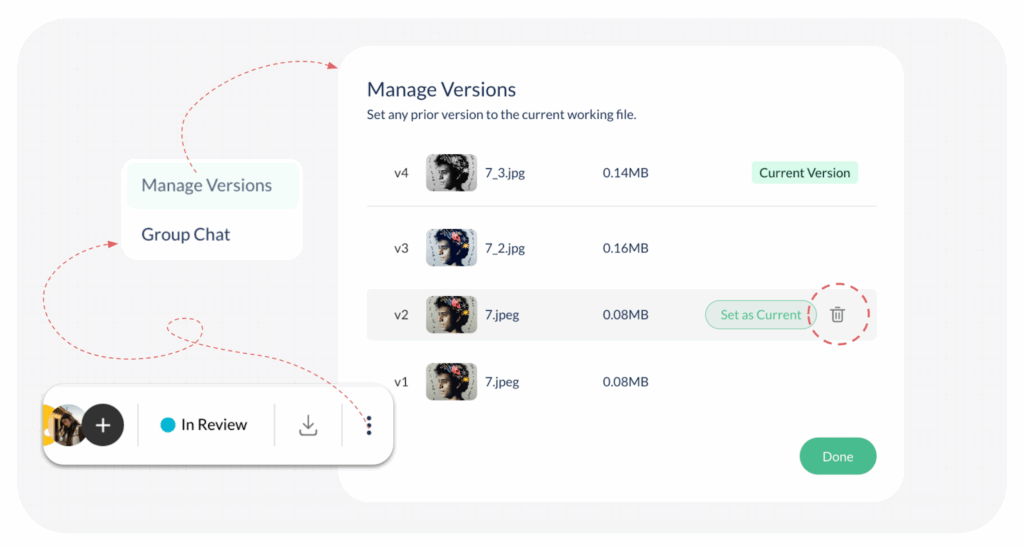
- Open the File: Click to open the file that contains the version you want to remove.
- Access Version Management: Click on the 3 vertical dots (ellipsis menu) located above the file viewer.
- Select Manage Versions: Choose ‘Manage Versions‘ from the dropdown menu.
- Locate Version to Delete: The panel displays all available versions, with the current version on top.
- Initiate Deletion: Hover over the version you wish to delete (any version except v1, and the current version). You will see the ‘Set as Current‘ option alongside the Delete Bin icon.
- Click Delete: Click on the Bin icon for the unwanted version.
- Confirm Deletion: A pop-up will open stating, ‘Deleting Version – Are you sure?‘. Click Yes to permanently delete the file version.
Visited 8 times, 1 visit(s) today
Was this article helpful?
YesNo
Last modified: November 10, 2025
