
ButtonShift Worklists offer three distinct views, allowing every team member to manage tasks and monitor workflow progress in the format that best suits their needs and convenience.
The three available views are the Kanban view (default), List view, and Calendar view. They can be accessed by clicking on the icons appearing to the right of the Worklist name.
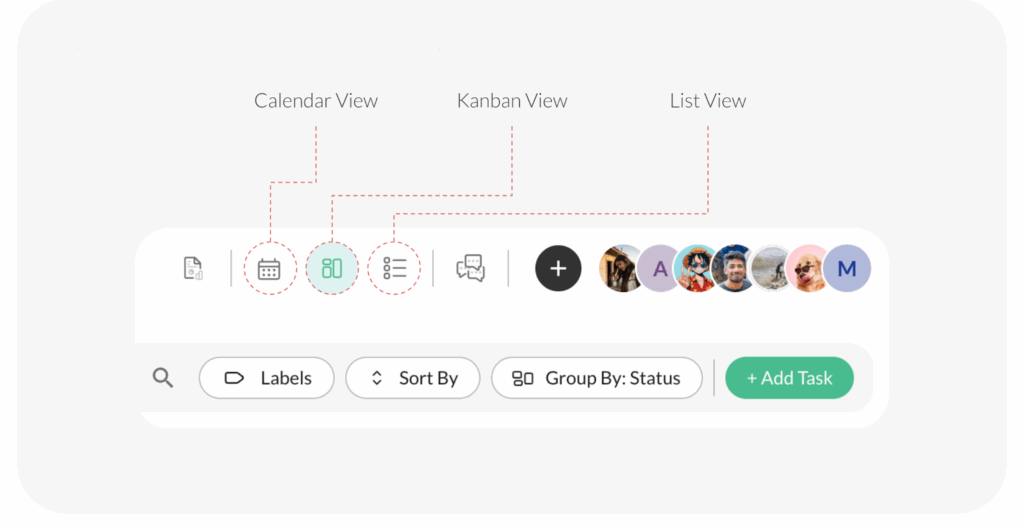
1. Kanban View (Default)
The Kanban view is the default, visual method for tracking the flow of work:
- Structure: Columns containing tasks – the default setting being Group by Status, with the column headers containing the Status names.
- Tasks: The tasks created appear below each status in a rectangular, rounded-edge box.
- Details: Each task box displays key details including the task name, priority, labels, set complete date, and the assigned member.
- Actionable: Members of the worklist can easily update tasks, move tasks across statuses, change priority, and change assignee details directly within this view.
2. List View
The List view provides a comprehensive, sequential breakdown of all tasks, offering greater detail and historical context:
- Structure: All Statuses and the tasks organized under them are displayed one after the other in a list format.
- Additional Details: In the List view, you additionally get to see the creator of the task along with the created date and the latest changes actioned date.
3. Calendar View
The Calendar view is ideal for managing timelines, deadlines, and scheduling:
- Structure: Tasks shown in a calendar format.
- Access: Click the calendar view icon to switch to this view. You get to see tasks that have dates set for start, complete, or both.
- Navigation: You can easily navigate to the previous or next months by clicking on the left/right arrow to see task details in those respective months.
Visited 23 times, 1 visit(s) today
Was this article helpful?
YesNo
Last modified: December 8, 2025
