
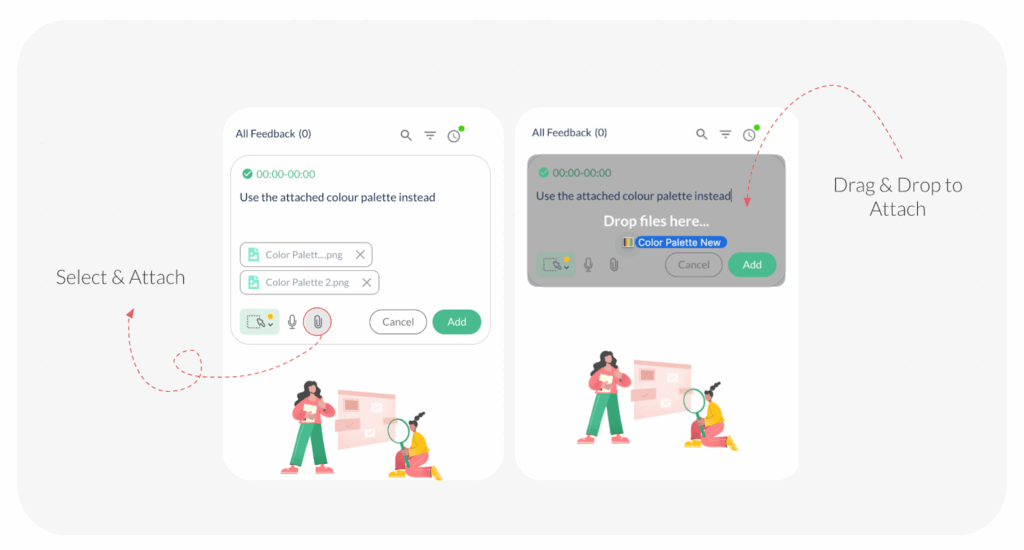
Yes, absolutely. ButtonShift is designed to make feedback clear and actionable, and that includes giving you the ability to attach reference files directly to your comments and replies.
You can enhance your feedback by adding attachments or voice notes, regardless of your role or how you accessed the file.
Who Can Add Attachments?
All users who can provide feedback have the ability to attach files for reference, including:
- Members: The Approver, Creator, Reviewer, Collaborator, and Viewer can all Add attachments in their feedback, comments, and replies.
- Guests: Users accessing the file via a Public URL (Guest Access) can also Add attachments in their feedback, comments, and replies.
Where You Can Add Attachments
This feature is available wherever you leave text input:
- In Feedback: When you create a new piece of feedback (either generic or with an annotation), you can attach a reference file.
- In Comments: When leaving a general comment on the file, you can include an attachment.
- In Replies: When replying to any existing feedback or comment thread, you can add an attachment or voice note to clarify your point.
Why Add Attachments?
Adding attachments ensures the Creator understands exactly what you mean by referencing examples. This could include:
- Reference Images: A screenshot of a competitor’s design or a mood board image.
- Source Files: A supporting brief related to the change.
- Voice Notes: As a complementary option, you can also add a voice note to your feedback, providing quick verbal context without having to type.
This robust capability ensures that every piece of feedback you provide is precise and self-contained, keeping your revisions focused and efficient.
Last modified: December 10, 2025
