
Yes, you can easily compare two versions of a file. This is an invaluable tool for approvers to quickly check if requested changes have been implemented in a new version, helping them make faster, more confident decisions in the review process.
How to Compare File Versions
Once a creator has uploaded a second version of a video file and submitted it for review, the approver can use the comparison tool:
- Open the File: Open the newer version of the video file that has been submitted for review.
- Compare: Look at the top left of the opened file and click the Compare versions option.
- Review Side-by-Side: The system will display the two versions of the video, v1 on the left and v2 on the right.
- Use Toolbar: Depending on the file type, example Video or image, you can perform actions like Play, Pause or zoom, fit-width etc., and make an in-depth comparison.
Reviewing Specific Feedback
For an even more targeted review, you can use the feedback panel while in comparison mode:
- Click on earlier feedback from the first version, and visualise the exact change side-by-side. Additionally, for videos, this action will automatically jump to the exact timestamp where the original comment or request was made.
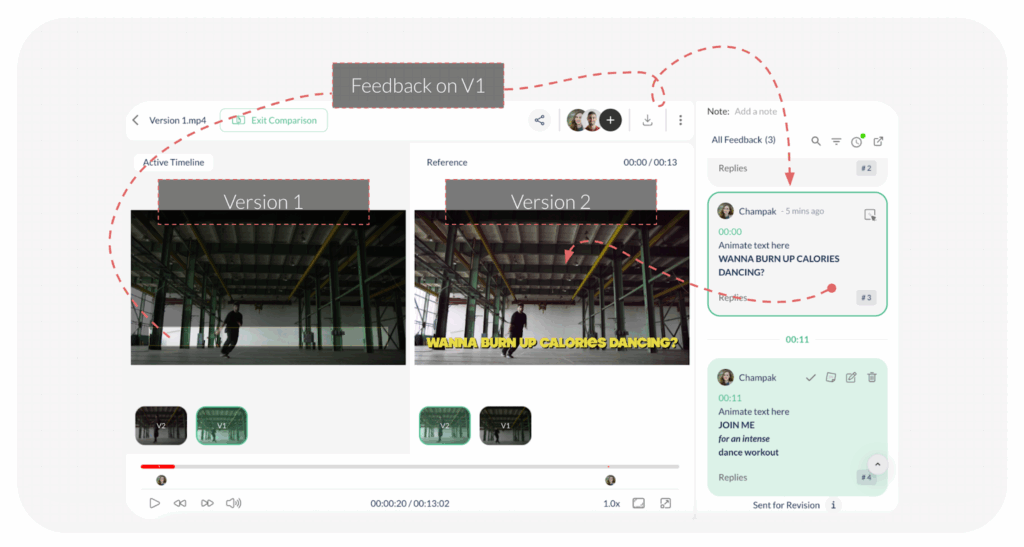
This ensures you can precisely review the exact ask in the feedback, and the actual changes performed.
Visited 13 times, 1 visit(s) today
Was this article helpful?
YesNo
Last modified: December 10, 2025
