
To efficiently manage your overall storage and reclaim space, ButtonShift provides a dedicated tool called ‘Free Up Storage.’ This feature helps you systematically identify and permanently delete non-essential content across your entire workspace.
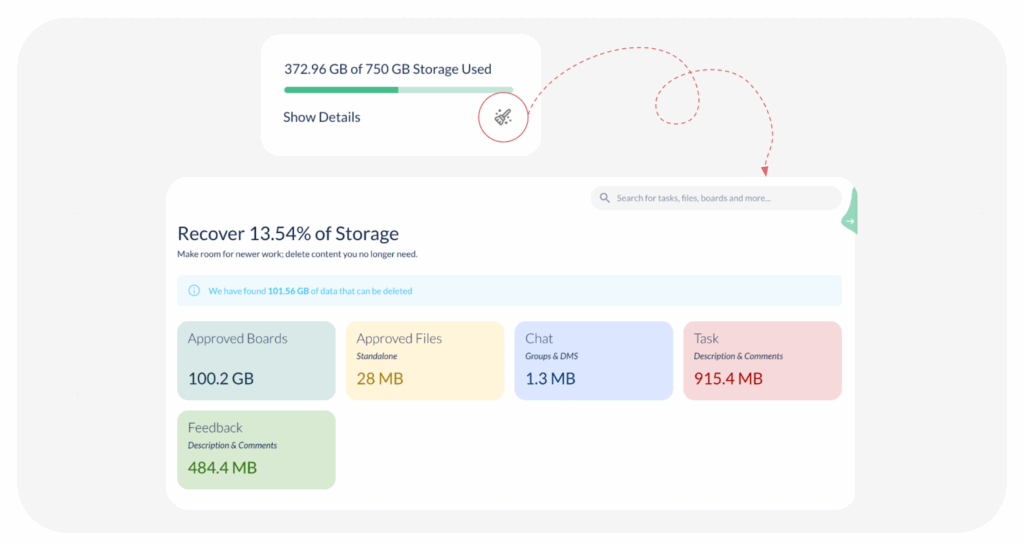
Step-by-Step Guide to Using ‘Free Up Storage’
- Access the Tool: On your main workspace dashboard, click on the Free Up Storage icon (which looks like a broom), which is located in the bottom right at the right-hand side dashboard.
- Review Potential Recovery: A new page titled ‘Recover x.yz% of Storage’ will open, displaying how much space can potentially be cleaned up. The content is categorized by source:
- Approved Board
- Approved Files
- Chat
- Task
- Feedback
- Review and Delete Content: Click on any of these categories (e.g., ‘Approved Board’) to open the list of content items. You will have to review each content separately and click Delete for the individual items you no longer need.
- Confirm Permanent Deletion: After clicking Delete, a pop-up will appear seeking final confirmation: ‘Selected entity’s attachments will be deleted permanently, Do you want to continue?‘
- Finalise Action: Click Yes to confirm the permanent deletion of the selected content and its attachments, instantly freeing up that storage space in your workspace.
Visited 8 times, 1 visit(s) today
Was this article helpful?
YesNo
Last modified: December 17, 2025
