
The Feedback Toolbar is located at the bottom of the screen whenever you open an image, video, PDF, or audio file. It provides essential controls for detailed review and analysis. While the core functionality remains consistent, the specific tools available are tailored to the type of file you are reviewing.
Features for Images & PDFs
The Image and PDF toolbar is designed for detailed visual inspection. While many features are common to both, some are exclusive to a specific format.
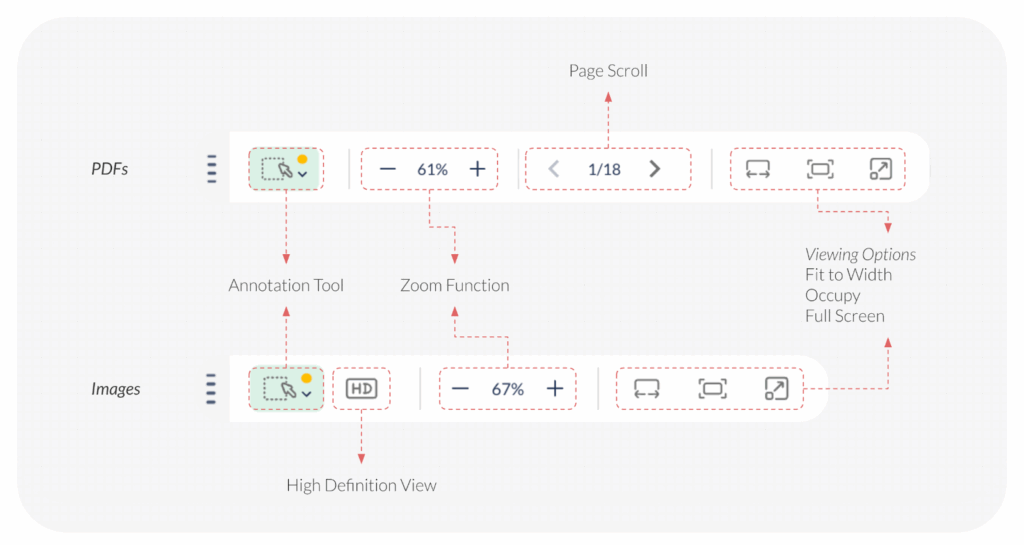
Common Controls:
- Annotation Tool: Allows you to draw shapes, lines, or add text directly onto the file. This is perfect for providing specific, context-driven feedback on a visual element.
- Viewing Options: These controls change how the file is displayed:
- Contain (Default): Fits the entire file within your current viewing window.
- Fit to Width: Scales the file to match the full width of your screen.
- Full Screen: Expands the file to fill your entire display.
Exclusive to Images:
- HD Preview: Toggles a high-definition view for closer inspection of fine details.
- Zoom In / Zoom Out: Manually magnifies or reduces the viewable area.
Exclusive to PDFs:
- Previous & Next Page: Allows you to navigate quickly through multi-page documents.
Features for Videos & Audio
The Video and Audio toolbars provide full control over playback and timing, ensuring you can give feedback at the exact millisecond or frame required.
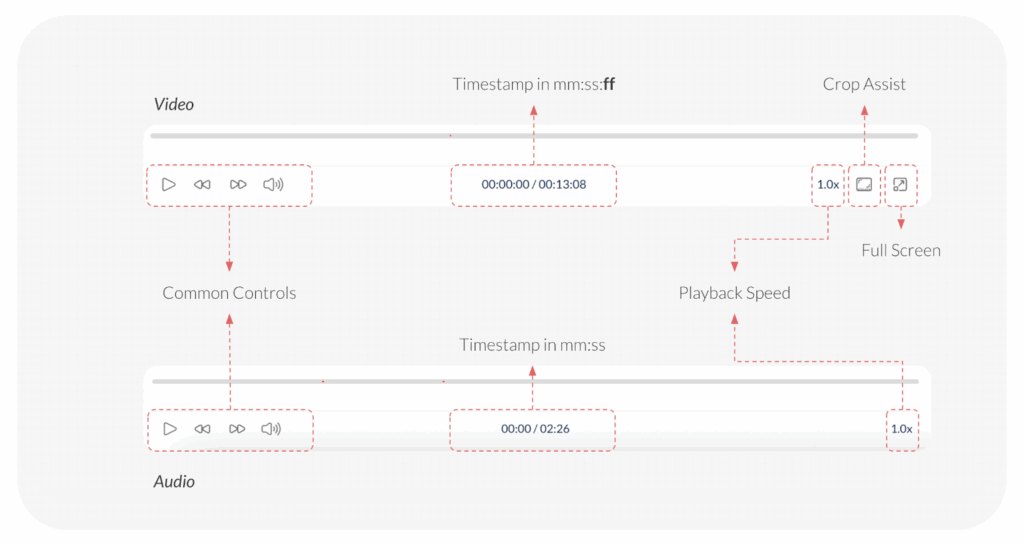
Common Controls:
- Play/Pause: Starts or stops playback.
- Rewind & Forward:
- Audio: Skips backward or forward by 0.5 seconds.
- Video: Skips backward or forward frame-by-frame for ultimate precision.
- Mute / Volume Adjust: Controls the audio output level.
- Timestamp: Displays your current position against the total duration. For videos, this also includes specific frame information.
- Playback Speed: Adjusts how fast the file plays (e.g., 0.5x, 1x, 1.5x, 2x).
Exclusive to Videos:
- Crop Guide: Overlays various aspect ratios or frame sizes to help you review how the video will look on different platforms (e.g., Social Media vs. Cinematic).
- Full Screen: Expands the video player to fill your entire display.
- Annotation Tool: Use on a Video while paused to attach your comment to a specific timestamp automatically!
Visited 57 times, 2 visit(s) today
Was this article helpful?
YesNo
Last modified: January 12, 2026
