
Yes, you have several flexible options to share a particular file for feedback, depending on whether the recipient is an internal team member or an external guest.
ButtonShift offers two primary methods for sharing files: Direct membership addition and Public URL sharing.
Method 1: Adding Internal Users to the File
This method is best for internal team members who aren’t already part of the file’s primary workflow, or for colleagues whose only role is to provide commentary.
- Click open the desired File.
- Click the ‘+’ icon next to the members on top.
- Enter the email address of the person you wish to add or select from the drop down.
- Select a role for the users (Approver, Creator, Collaborator, Reviewer, Viewer).
- Click on Done.
Note, tagging a user on a feedback or comment of a file will automatically add the tagged person as a Viewer.
To know more about what role to select, read this article “What are the different roles in a Board?”
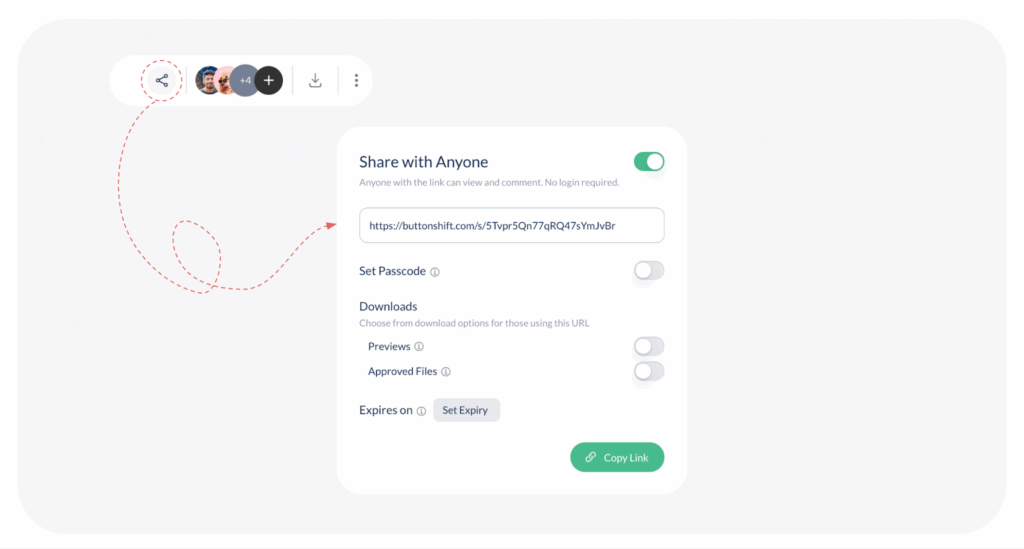
Method 2: Sharing via a Public URL (Guest Access)
This method is ideal for sharing with clients, partners, or anyone external who does not have a ButtonShift account. It provides controlled access for review only.
- Click open the desired File.
- Click the ‘Share with Anyone‘ icon to open the sharing pop-up.
- Activate the Share toggle to activate the share feature.
- Set passcode (optional) – do remember to share this separately
- Set download (preview, approved files) permissions (optional)
- Copy the Public URL and send it.
Anyone with this link gains Guest Access and can actively participate in the review process without logging in. Guests can perform all necessary feedback actions, including:
- Add feedback with annotation on the file.
- Add comments and replies to threads.
- Add voice notes and attachments to their feedback for better clarity.
This dual approach ensures you can efficiently gather feedback from anyone, inside or outside your organization, while maintaining control over your file’s security and workflow.
Last modified: January 12, 2026
