
Yes, you can easily make individual files, entire boards, and files within a board public using a shareable URL. This is an essential feature for secure external collaboration with clients, vendors, or guests who are not registered on ButtonShift.
This public link grants Guest Access, allowing anyone with the link to view the content and provide comments without needing to log in or create an account.
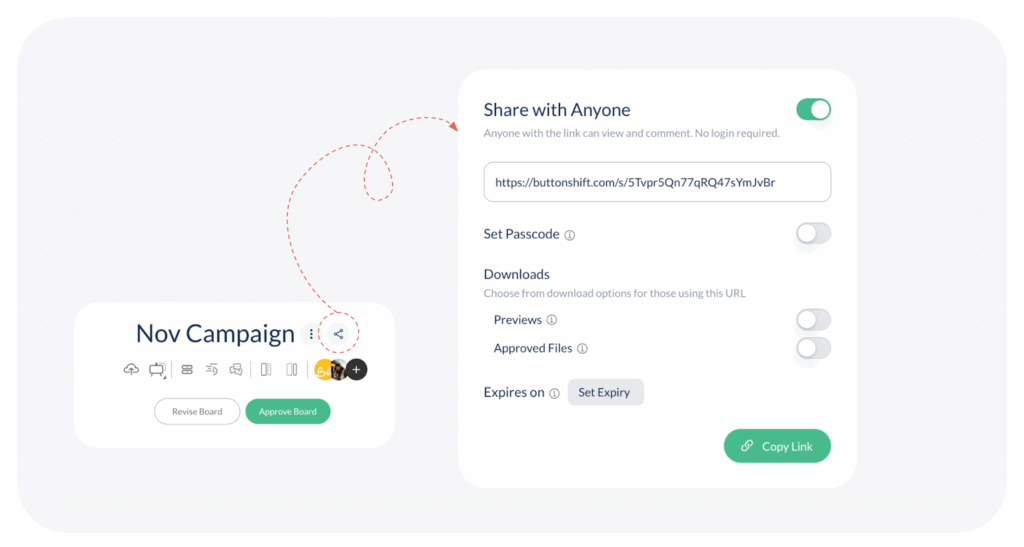
Steps to Share a Board Using Public URL
- Click open the desired File (standalone or within a Board) or the entire Board from your workspace.
- Click on the ‘Share with Anyone‘ icon (represented by a link symbol) located to the right side of the filename or board name.
- A pop-up titled “Share with Anyone” will open. Click the toggle to activate the share feature.
- A Public URL link will appear below. Copy that link or click ‘Copy Link‘ at the bottom and send it to the desired party via message, WhatsApp, or email.
Secure and Controlled Guest Access
The share feature provides robust controls to secure your content even when shared publicly:
- Set Passcode: You have the option to ‘Set Passcode‘. If you use this, you must remember to share the passcode with the user separately for them to gain access.
- Set Expiry: You can Set Expiry by specifying a date and time. The link will automatically deactivate after this period.
- Control Downloads: You can set permissions for downloads by giving specific access to:
- Download the Preview version.
- Download the Approved File original version.
- Or, you can deny download access completely.
Once all desired settings are done, ensure you click ‘Copy Link‘ to finalize the action and distribute the URL.
Visited 81 times, 1 visit(s) today
Was this article helpful?
YesNo
Last modified: January 12, 2026
